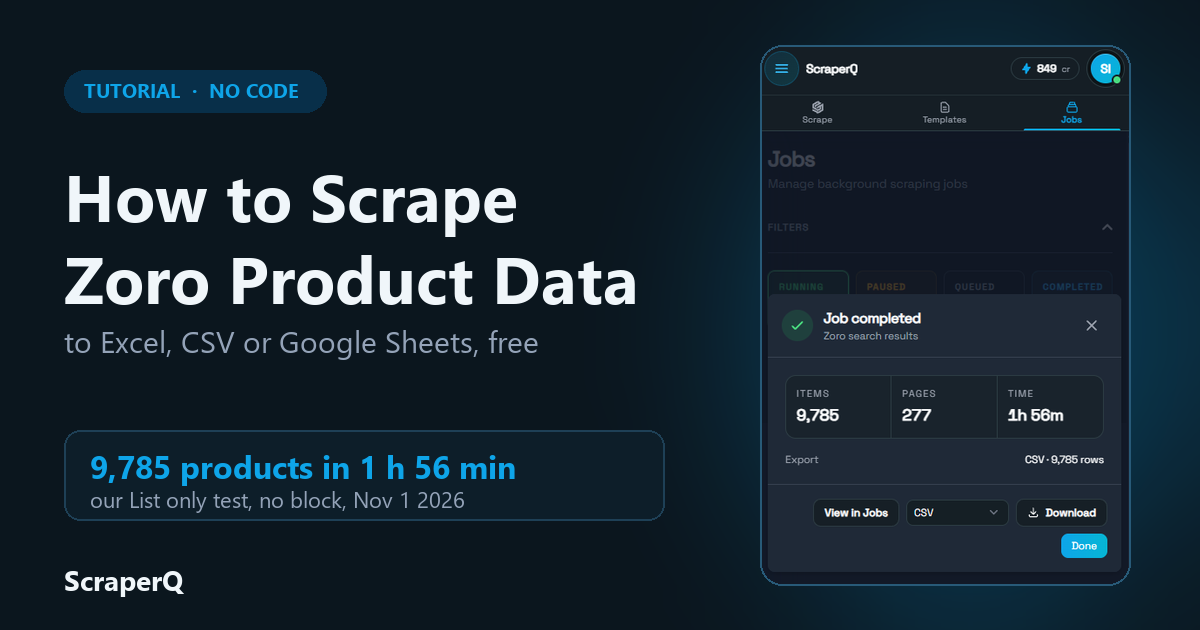
To scrape Zoro product data without code, install the ScraperQ Chrome extension, sign in with Google, open a Zoro search, and run the prebuilt Zoro template. Each product becomes one row with its price, Zoro #, Mfr #, brand, stock status, rating and review count. A second pass adds the description, the full spec table and the reviews. You export it to Excel, CSV, JSON or Google Sheets.
Scraping in the extension is free, with no page or data limit, for anyone who signs in with Google (as of November 2026).
Key takeaways
- Zoro search results give 11 fields per product. Adding product pages gives 15, including the full spec table and review text.
- In our 10-product test, 2 products had no rating and no review count. The export leaves those cells empty instead of writing 0.
- In our List only test, ScraperQ extracted 9,785 Zoro products from 277 search pages in 1 hour 56 minutes, and Zoro did not block the job.
- Zoro is a protected site, so the template waits 5 to 10 seconds between pages. That pace is why a big job takes hours, not minutes.
- You can send the result to Excel (.xlsx), CSV, JSON or Google Sheets.
- It reads public pages in your own browser. No login, and no code to maintain.
What data can you get from Zoro?
The Zoro template has three modes. List only reads the search results page. List then details also opens each product page. Details only reads product links you paste in.
| Field | List only | List then details | Example from our run |
|---|---|---|---|
| Product name | yes | yes | GWGN, Disposable Gloves, 8 mil Palm, Nitrile, Powder-Free, L, 100 PK, Green |
| Product URL | yes | yes | link to the Zoro product page |
| Zoro # (Zoro's item number) | yes | yes | G3278864 |
| Mfr # (manufacturer part number) | yes | yes | GWGN46100 |
| Brand | yes | yes | Gloveworks By Ammex |
| Price | yes | yes, with currency | 30.19 (USD) |
| Rating and review count | yes | yes | 4.2 from 5 reviews |
| Stock status | "In Stock" text | "InStock" from the page data | In Stock |
| Image | image link and alt text | image link | link to the product image |
| Description | no | yes | the text from the product page |
| Specifications | no | every spec name and value | Size: L; Palm Thickness: 8 mil; Material: Nitrile |
| Reviews | no | the reviews shown on the page | 5 stars, "Great Gloves!" |
The Zoro # is Zoro's own item number, for example G3278864. The Mfr # is the maker's part number, for example GWGN46100. Keep both if you want to match the same product on another store.
Step by step: from a Zoro search to a spreadsheet
Step 1: Install the extension and find the Zoro template
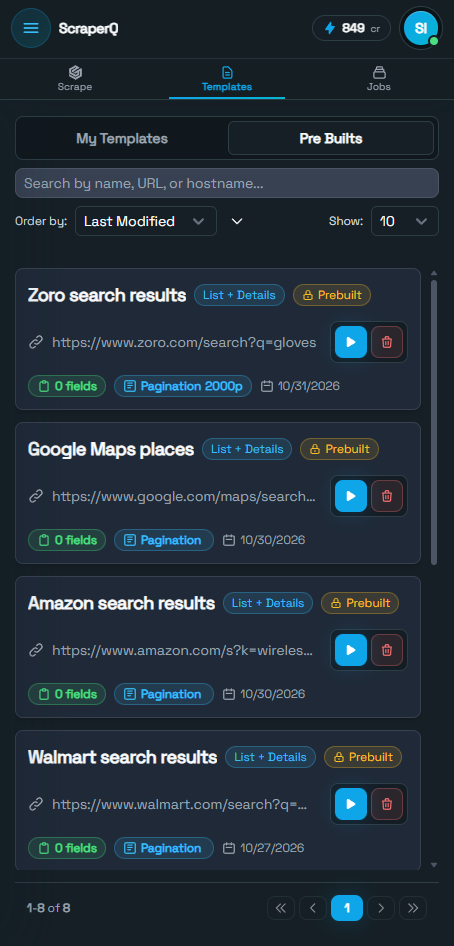
Add ScraperQ to Chrome or Brave and sign in with your Google account. No card is needed. Open the side panel, go to Templates, then Pre Builts. "Zoro search results" is in the list, with its default start URL, a Zoro search for gloves.
Step 2: Open a Zoro search
Go to zoro.com and search for what you need, or keep the template's gloves search. Keep that tab open, because the template runs on the page you have open.
Step 3: Set up the run
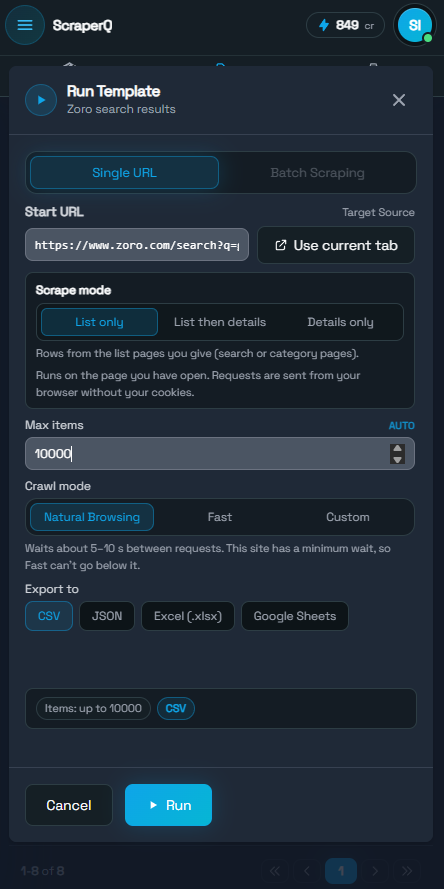
Click the play button on the Zoro template. In the Run Template dialog, click Use current tab to fill in the start URL. Then choose a scrape mode:
- List only if you need prices, numbers and stock.
- List then details if you also need specs, descriptions and reviews.
Set Max items for how many products you want, pick your export format (CSV, JSON, Excel or Google Sheets) and click Run. The crawl mode is already set to Natural Browsing. The dialog explains why: Zoro has a minimum wait, so Fast cannot go below it.
Step 4: Watch the job and download your file
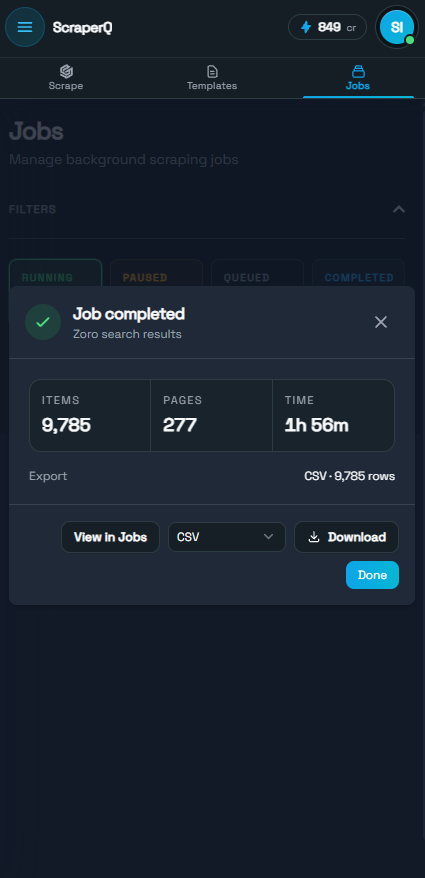
The job runs in the Jobs tab. You see the items extracted, pages per minute, total pages and time so far. You can pause or stop it at any point. When the job ends, a Job completed panel shows the items, pages and time. Click Download to save the file.
Want to try it on your own search? Open the Zoro template and run it on any Zoro results page.
Can you get Zoro reviews and ratings?
Yes. The rating and review count come with every product in both modes. List then details also saves the review text shown on each product page. Zoro fills in the stars with a script after the page loads, so the template reads the page in your browser, not the raw HTML.
Two things to know:
- No reviews means an empty cell, not 0. In our 10-product run, 2 products had no rating and no review count.
- The search card and the product page can disagree. For one glove, the search card said 19 reviews and the product page said 15. If the count matters, use the product page value and note the date.
How do you export Zoro data to Excel or Google Sheets?
Pick the format in the run dialog before you start: CSV, JSON, Excel (.xlsx) or Google Sheets. Google Sheets sends the rows to a new or existing sheet and needs your Google sign-in. For a one-off price check, Excel is the simplest. For a list you update every week, Google Sheets saves you the copy-paste.
See export options for each format.
Is it free, and what are the limits?
Scraping in the extension is free for anyone who signs in with Google. There is no page limit and no data limit (as of November 2026). We may add a cap later as more people use it. AI features, such as building a new template or repairing one, use AI credits. Running the prebuilt Zoro template is regular scraping.
The limits that matter for Zoro:
- Max items per job. Set it in the run dialog. The template starts at 200; we set 10,000.
- Public pages only. It does not log in to a Zoro account and does not get past blocks or CAPTCHAs.
- Your browser does the work. Requests go out from your browser without your cookies, at the pace of the crawl mode you pick.
- Sites change. If Zoro changes its layout and a field comes back empty, selector repair can fix the template (it uses AI credits). See repairing selectors.
Why does scraping Zoro take time?
Zoro protects its site against automated traffic, so the Zoro template is set to go slowly on purpose. We mark Zoro as a high-risk site in the template. One developer of a cloud Zoro scraper notes that Zoro "blocks datacenter IPs" (Apify actor page, read 2026-10-21). ScraperQ runs in your own browser, but it still keeps the pace low.
These are the Zoro template's built-in settings:
| Setting | Zoro template |
|---|---|
| Wait between pages | 5 to 10 seconds, random |
| Most requests per minute | 6 |
| Pause | 1 to 2 minutes after every 6 pages |
| How pages are read | in the browser, so Zoro's scripts load the ratings and stock |
Fast mode cannot go below these waits. They are the site's minimum.
Did it get blocked? Not in our run. On November 1, 2026 we ran a List only job with Max items set to 10,000. It finished with 9,785 products from 277 search pages in 1 hour 56 minutes, and the export held 9,785 rows. Zoro did not block the job. By our arithmetic that is about 35 products per search page, 2.4 pages a minute and 84 products a minute.
That is one run, on one day, from one connection, so your result can differ. We have not timed List then details on Zoro yet. It opens every product page at the same careful pace, so expect it to take much longer. Use it for short lists, or for the products you picked from a List only export.
What does it cost to scrape 1,000 Zoro products?
Paid cloud scrapers run on their own servers through residential proxies, and you pay per result. Here is the price for 1,000 Zoro products, from each service's own page as of November 1, 2026:
| Tool | Price for 1,000 products | Where it runs | What you need |
|---|---|---|---|
| ScraperQ (Zoro template) | Free (no page or data limit, as of November 2026) | your browser | Chrome or Brave and a Google sign-in |
| Zoro Search Scraper (clootrack) on Apify | $3.00 | Apify cloud, residential proxies | an Apify account |
| Zoro Listings Scraper (piotrv1001) on Apify | from $4.00, or $8.00 with ratings, review count and UPC | Apify cloud, US residential proxies | an Apify account |
None of these pages states a speed, so we do not compare speed. For ScraperQ, our List only test took 1 hour 56 minutes for 9,785 products. Raise Max items in the run dialog first; the template starts at 200. Adding product details (specs, descriptions, review text) takes much longer, because every product page is opened one by one.
If you need Zoro data every day and do not want to keep a browser tab open, a paid cloud scraper runs without you. If you can let a tab run, ScraperQ costs nothing.
Some tips for a smoother run:
- Use List only when you just need prices, numbers and stock.
- Use List then details for a short list, or run it while you do something else.
- Keep the tab open. The job runs in your browser.
- Do not run several Zoro jobs at once.
This is not a way around Zoro's protection. ScraperQ does not bypass blocks or solve CAPTCHAs. It reads public pages at a gentle pace. A run can still hit a block; ours did not.
Is it legal to scrape Zoro?
This is not legal advice. The template reads public product pages, the same ones any visitor sees, with no login. Read Zoro's terms of use before you collect data, and check what they allow for your use. Keep request rates gentle (Natural Browsing mode waits a few seconds between pages), and do not republish their content as your own.
FAQ
What is a Zoro #? It is Zoro's own item number for a product, such as G3278864. You find it on each search card and product page. The template saves it in its own column next to the Mfr #, the maker's part number.
Can I scrape a single Zoro product page? Yes. Use Details only mode and paste one or more product links, one per line, or upload a CSV or Excel file of links. In our test, one product link gave one row with the full spec table and reviews.
How many Zoro products can I scrape in one job? You set it with Max items in the run dialog. The template starts at 200, and our test ran with 10,000. There is no page or data limit on free scraping in the extension as of November 2026.
Can I save Zoro data as CSV instead of Excel? Yes. Choose CSV in the run dialog before you start the job. JSON and Google Sheets are also available.
How we tested
- Template: Zoro search results (`zoro-search`), prebuilt
- Sample data run (October 21, 2026): "gloves" search; List only (10 products), List then details (10 products), Details only (1 product link). Every product had a name, Zoro #, Mfr #, brand, price and stock status. 2 of 10 had no rating or review count.
- Speed run (November 1, 2026): List only, Max items 10,000, Natural Browsing, CSV. The job completed with 9,785 items from 277 pages in 1 hour 56 minutes. The export held 9,785 rows. Zoro did not block the job.
- Extension version: 1.3.6
The field and review notes come from a small run of 10 products. The speed figures come from one job on one day, from one connection. Your times will vary with your connection and with how Zoro responds.
Try ScraperQ for free
No coding required. Auto-healing selectors. Your templates work forever.
Add to Chrome